
What is Google Merchant Center?
Google Merchant Center is Google's free platform that lets you upload your product catalog so it appears on Google Shopping, in search results and in Google Ads campaigns. By connecting your wholesale store, your products gain visibility with buyers who are actively searching for what you sell.
Benefits for wholesalers
- Show your products on Google Shopping: your catalog appears with image, title and price when buyers search for products like yours.
- Appear in search results: your products show up directly on Google when someone searches for what you sell.
- Automatic Google Ads campaigns: use your product feed to create Smart Shopping campaigns that optimize themselves.
- Performance analytics: measure which products generate the most clicks and interest from Google.
- Automatic sync: the feed updates itself every 24 hours. No manual work needed.
- Protected pricing: your real wholesale prices are not shown publicly. The feed displays a generic price until the customer accesses your store.
What do you need to get started?
- A Google (Gmail) account.
- A Google Merchant Center account.
- Your product feed link, automatically generated by ventasxmayor.com.
Step by step: connect your catalog
1. Sign in to Google Merchant Center
Go to merchants.google.com and sign in with your Google account. If you don't have a Merchant Center account, you can create one for free in under 5 minutes.
2. Create a new product feed
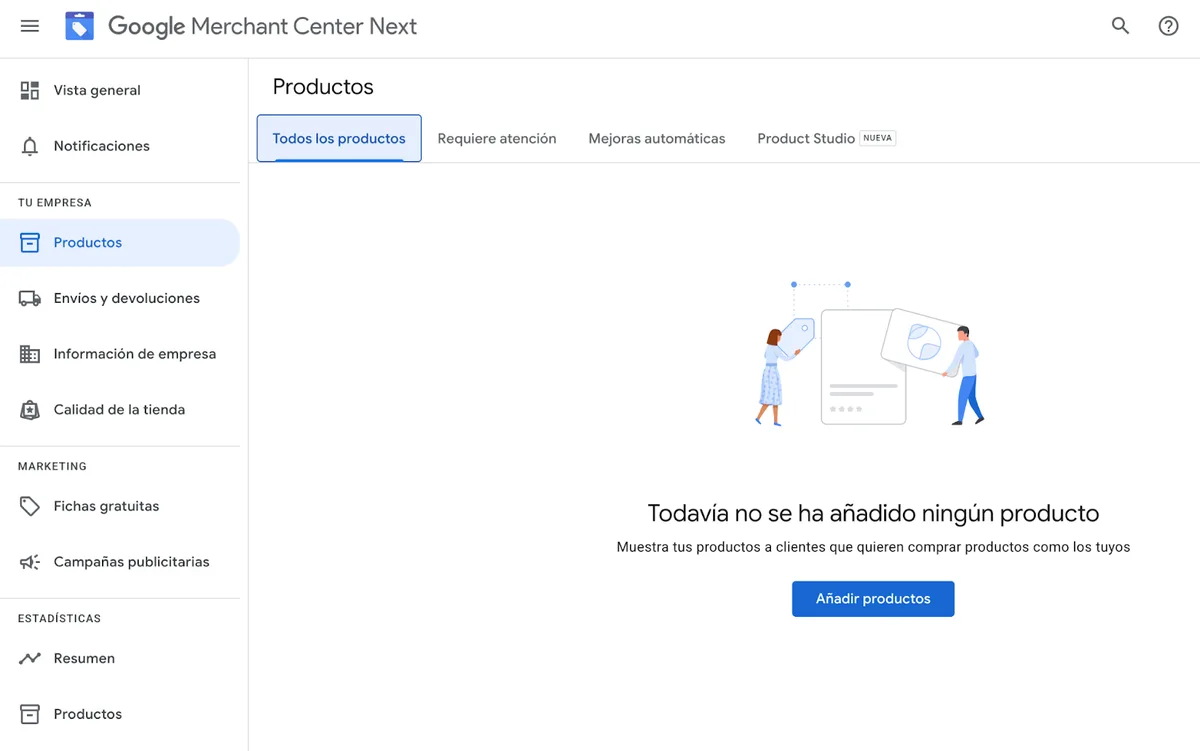
- In the left menu, click Products → Add Products.
- Press the blue + button to add a new feed.
3. Configure the feed with your catalog URL
Select the option "Add products from a file".
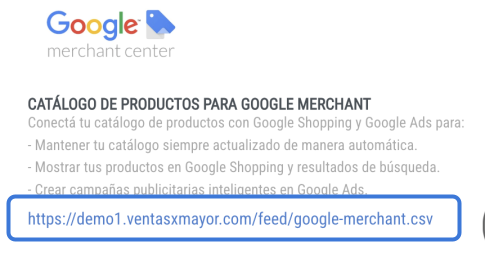
In the "Enter a link to your file" field, paste the feed URL found in your store admin panel, under Advertising → Google Merchant.
Example feed URL: https://yourdomain.com/feed/google-merchant.csv
4. Set up automatic updates
In the "Edit schedule" section, set the update frequency. We recommend:
- Frequency: every 24 hours.
- Time: 0:00 (or your preference).
- Authentication: not required. Leave username and password fields empty.
5. Finish and wait for processing
Click Continue to finish. Google will start processing your products and, if everything is correct, they'll be available for campaigns within a few hours.
How do products stay up to date?
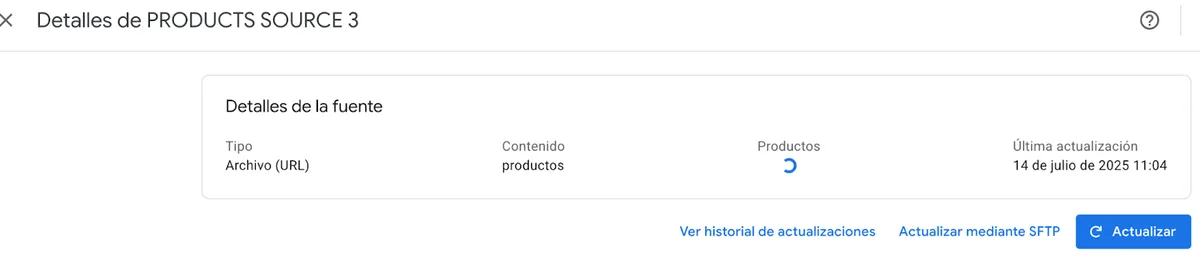
No manual work required. Once the feed is set up, Google automatically downloads the CSV file every 24 hours and updates the products published in your store. If you add, modify or remove products in your ventasxmayor.com catalog, the changes are reflected in the next update cycle.
Will my wholesale prices be visible publicly?
No. While Google Merchant Center requires a mandatory price, the feed generated by your store shows a generic price of $1 per product. The real price is only revealed when the customer creates an account in your store and starts buying. This protects your wholesale pricing policy.
Troubleshooting: "Not Approved" products
If you've already uploaded your feed but see products listed as "Not Approved", it's likely because you haven't verified domain ownership in Merchant Center yet.
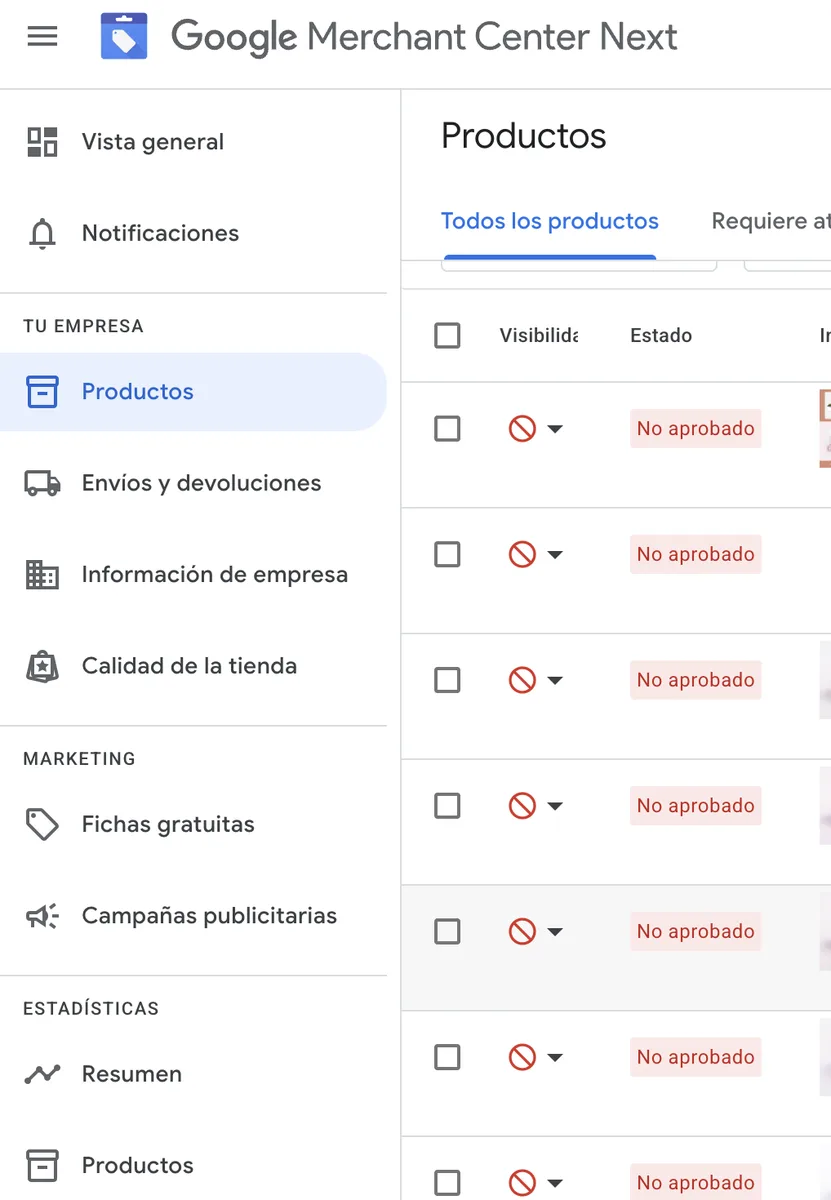
To fix this, you have two options:
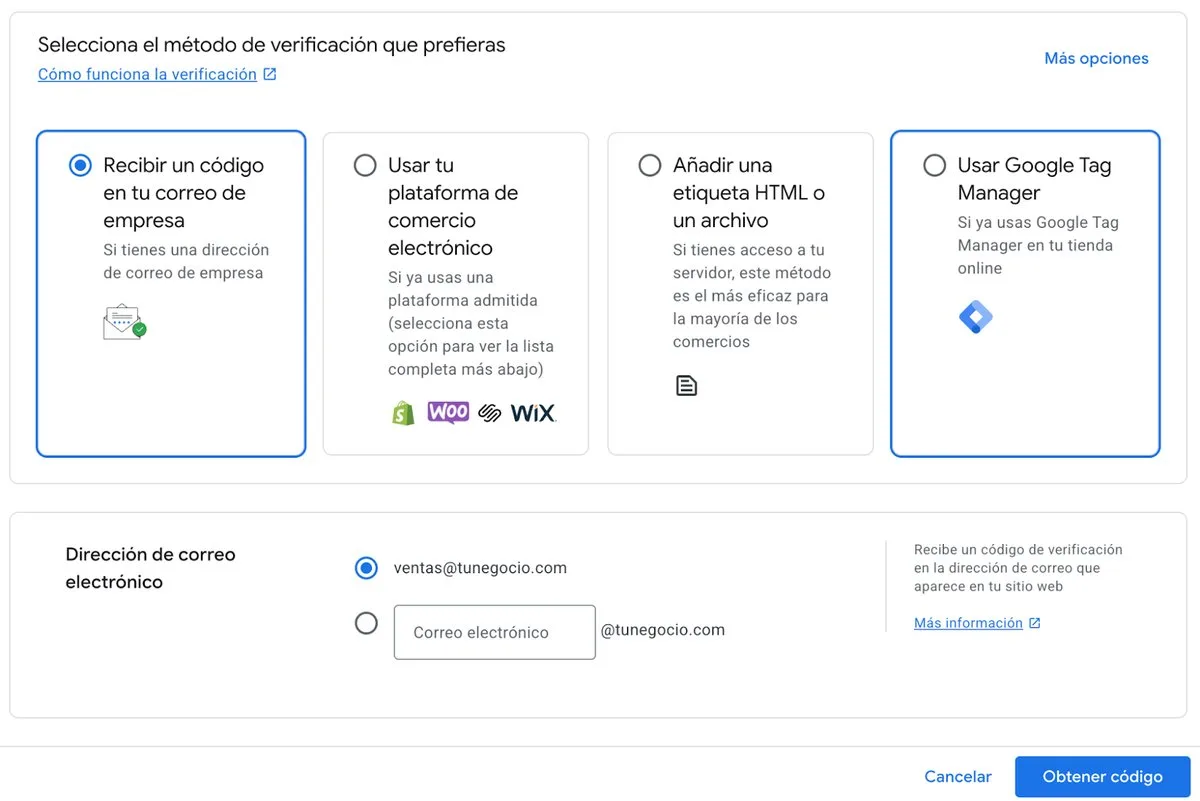
Option A: email verification
- In Merchant Center, click "Confirm online store".
- Select "Receive a code in your company email".
- Enter your corporate email and click "Get code".
- Verify with the code you receive in your email.
Note: you need an email set up with your domain. You can activate it for free from your admin panel → Corporate Email.
Option B: Google Tag Manager verification
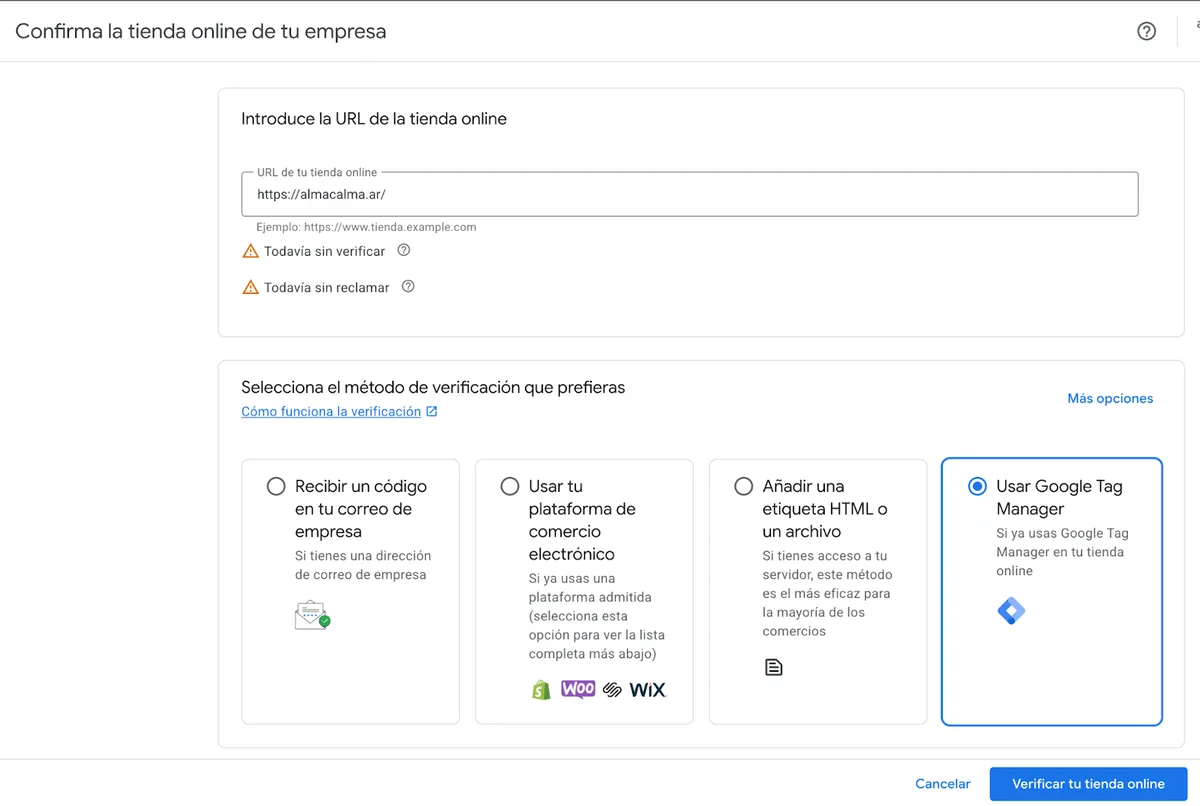
- Enter your store URL in Merchant Center.
- Select "Use Google Tag Manager".
- Click "Verify your online store".
Important: before using this method, you need to link your account to Google Tag Manager. If you need help, contact us.
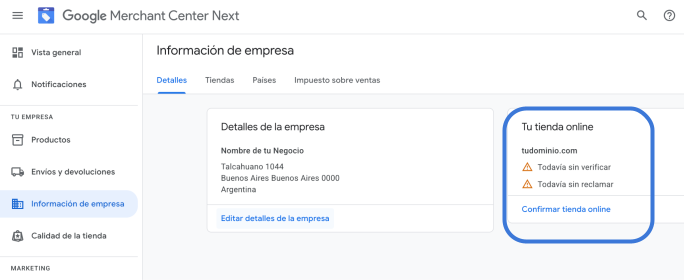
Once your store is verified with either method, products will be approved and published in Merchant Center.
Tips to get the most out of this integration
- Use high-quality images: products with clear, professional photos get more clicks on Google Shopping.
- Write descriptive titles: include brand, product type and key features in each title.
- Enable Smart Shopping campaigns: use Google Ads Smart Shopping for automatic campaigns based on your feed. Google optimizes bids and targeting for you.
- Check alerts: if a product doesn't appear, go to your Google Merchant account and check the diagnostics section to see what needs fixing.
- Keep your catalog updated: the more complete and up-to-date your catalog on ventasxmayor.com, the better the performance on Google.


