
Connect your product catalog to Meta
Automatically sync your products with Facebook, Instagram, and WhatsApp Business. Reach more B2B customers with zero manual effort.

Why integrate your catalog with Meta and WhatsApp Business?
Integrating your store's product catalog with Meta platforms (Facebook/Instagram) and WhatsApp Business allows you to:
- Promote products with ads on Facebook and Instagram, reaching thousands of wholesale buyers.
- Display your catalog in a shop on Facebook or Instagram. (Not available in Argentina)
- Keep your catalog always up to date automatically, with no manual uploads.
- Show your catalog on WhatsApp Business, so customers can browse products directly from the chat.
How does it work?
Your store automatically generates a special URL containing your product catalog in a Meta-compatible format. This URL stays always up to date and reflects any changes you make to your products: new items, description changes, or stock updates sync without intervention.
Note about catalog prices
The catalog is generated with a $1 price per product, since Meta requires a price value to connect. Real wholesale prices are only available to registered users in your store. Your customers will never see an incorrect price: when they click, they are directed to your store where real prices are shown once authenticated.
Step-by-step guide
Step 1: Access Business Manager and create the catalog
To manage product catalogs in Meta, first log in to your company's Meta Business Manager and navigate to the Catalogs section:
- Log in to Business Manager: Go to business.facebook.com and sign in with your Facebook business account. If you manage multiple companies, select the desired one.
- Go to Business Settings: Click Business Settings. In the left side menu, find Data Sources and click Catalogs → Create a catalog.
- Create a catalog: If you don't have one yet, click Add Products then select Create a catalog. In the pop-up window:
- Select the catalog type Products (for physical products).
- Enter a descriptive name (for example, your store name).
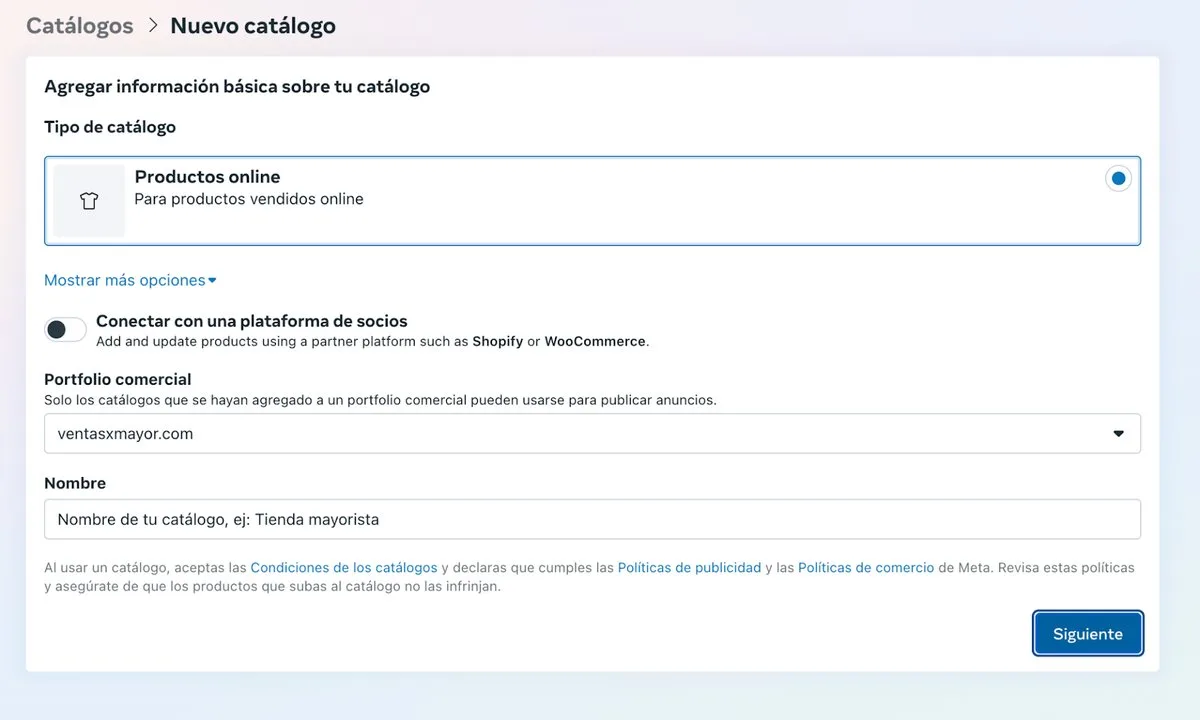
- Click Next and assign the appropriate permissions. Select the people who will manage the catalog and assign the Catalog Administrator role. Make sure you have admin permissions to add data sources.
- If Meta asks you to connect a pixel or event sources to the catalog, you can do it now or skip this step. It is optional for ads and not required for linking the catalog to WhatsApp.
- Verify the catalog: Once created, the catalog will appear in the list. Select it to configure its details. You may need to open it in Commerce Manager to manage products and data sources.
Step 2: Connect the catalog using the product feed URL
Once you have a catalog set up, the next step is to populate it with your store's products using the provided data feed (a CSV file at a public URL). Meta requires each product to include mandatory fields such as ID, name, availability, price, link, etc.
The feed URL follows the format https://yourdomain.com/feed/facebook-catalog.csv and contains a dummy $1 price per product (Meta requires a price value for each item; real prices are shown only to registered users in your wholesale store).
To copy your catalog URL, go to the ADVERTISING → PRODUCT CATALOG IN META section in your admin panel and copy the URL.
Now follow these steps to connect the catalog via the feed URL:
- Open the catalog in Commerce Manager: From Business Manager, in Catalogs, select the catalog you created and click Open in Commerce Manager. This opens the interface where you can add the data source.
- Navigate to Data Sources: Within Commerce Manager, open the Catalog tab and go to the Data Sources section.
- Add a data list: If the catalog has no data source, you will see the option to create one. Click Add to set up a new product list. If a feed already exists, click Add another list.
- Choose scheduled feed: Select the Data List (scheduled feed) option and click Next. This option connects via URL so the catalog updates automatically.
- Enter the feed URL: Copy the URL from your admin panel under ADVERTISING (e.g.,
https://yourdomain.com/feed/facebook-catalog.csv) and paste it in the Enter URL field. Click Next. - Name the source and choose currency: Assign an identifying name to the data list and select the corresponding currency (ARS, USD, BRL, etc.).
- Configure update frequency: Schedule how often Meta should reload the file from the URL. We recommend daily updates. Leave the Automatic Updates option enabled.
- Upload the feed: Click Upload.
- Complete the upload: Meta will process the CSV file and load the products. This may take a few minutes. If some products have incomplete data, Meta will show warnings, but as long as required fields are present, products will be added correctly.
You can verify in the catalog's Items tab that all products appear with their data (name, description, image, $1 price, etc.). Customers will only see the real price when entering your store.
Step 3: Link the catalog to WhatsApp Business
With the catalog ready in Commerce Manager, the final step is to connect it to your WhatsApp Business account so products appear in your business profile. Your customers will be able to see products directly on WhatsApp and you can easily share them in chats.
Before proceeding, make sure you meet these requirements:
- WhatsApp Business account: You must have the WhatsApp Business app installed and configured with your company number (different from personal WhatsApp Messenger).
- Linked Facebook page: Your WhatsApp Business account must be linked to your business Facebook Page. If you haven't done so yet, follow these steps:
- Open the WhatsApp Business app on your phone.
- Go to Business Tools (or Settings → Business Tools) and tap Facebook and Instagram.
- Select Facebook and tap Continue. Sign in with your Facebook account if prompted.
- Choose the Facebook Page of your business that you want to link.
- Tap Connect WhatsApp to confirm the link.
Steps to connect the catalog in the WhatsApp Business app:
- Open the WhatsApp Business app on your device.
- Go to the Tools tab and tap Catalog.
- Tap the options icon (three dots on Android or Settings on iOS) and select Catalog Settings.
- Look for the Connect Catalog option and tap it. The app will detect that you have a Meta catalog available.
- Tap Continue and then Confirm to complete the connection.
Important: When you connect your WhatsApp Business catalog to a Meta catalog, any local catalog you were using in the app will be archived and replaced by the connected catalog. All products will be managed from Commerce Manager (or from your platform through the feed).
Your Meta product catalog is now connected to your WhatsApp Business account. Customers who visit your profile can see all your products. From the app, you can also select catalog products to send directly in chats, facilitating conversational selling.
Tips and maintenance
- Product updates: The catalog updates automatically based on the configured frequency (we recommend daily). If you need to force an immediate update, go to Commerce Manager → Data Sources, select the list, and use the Upload Now option. Changes are reflected on WhatsApp within a maximum of 24 hours.
- Product editing: You cannot edit the connected catalog from the WhatsApp app. Any changes (adding, removing, or modifying products) must be made in your online store, and they will sync automatically through the feed.
- Catalog prices: The feed uses a dummy price ($1) to meet Meta's technical requirements. You can clarify in the product description that the real price is available in the store or during the conversation.
- Multichannel experience: With the catalog connected, you offer a consistent experience across Facebook, Instagram, and WhatsApp. Your customers can browse products, share links, and amplify the visibility of your wholesale catalog.
- Disconnect catalog: If you need to return to the local manual catalog, you can do so from the app: Tools → Catalog → Options → Catalog Settings → Disconnect Catalog. This will restore the previous local catalog.
Need help connecting your catalog?
Our support team guides you through every step of the Meta integration.