What is Google Tag Manager?
Google Tag Manager (GTM) is a free tool from Google that lets you manage all your website's tracking codes from a single dashboard, without editing your store's source code. It is the industry standard for professional digital marketing.
Benefits of using GTM in your wholesale store
- Manage all your tags in one place: Add, modify or remove tags for Google Analytics, Google Ads, Meta Pixel, TikTok and more from a single dashboard.
- Save time and resources: Your marketing team can implement and update tags without depending on the tech team, accelerating your campaigns.
- Improve data accuracy: Centralized management reduces errors and ensures your conversion data is reliable.
- Team collaboration: Multiple users can work on tag configuration simultaneously, with different access levels and permissions.
- Optimize your marketing campaigns: With precise control over your tags, you can measure the real performance of each channel and improve your ROI.
- Integrate third-party tools: GTM doesn't just work with Google products. You can add tags from any platform: Meta, TikTok, Hotjar, Clarity and many more.
- Conversion tracking and remarketing: Set up conversion tracking for Google Ads and create remarketing audiences to recover wholesale customers who didn't complete their order.
What do you need to get started?
- A Google account (Gmail or Google Workspace)
- Create a container in Google Tag Manager
-
Get the GTM container ID (example:
GTM-TRKRC3VR) - Access your store at ventasxmayor.com as an administrator
Step 1: Create the container in Google Tag Manager
1.1 Log in to Google Tag Manager
Open tagmanager.google.com and sign in with your Google account.
1.2 Create an account and a container
If you don't have a container yet, follow these steps:
- Click on "Create Account"
- Account name: enter the name of your company or store
- Country: select your country
- Container name: use the name of your store
- Target platform: select Web
- Click Create and accept the terms of service
1.3 Copy the GTM ID
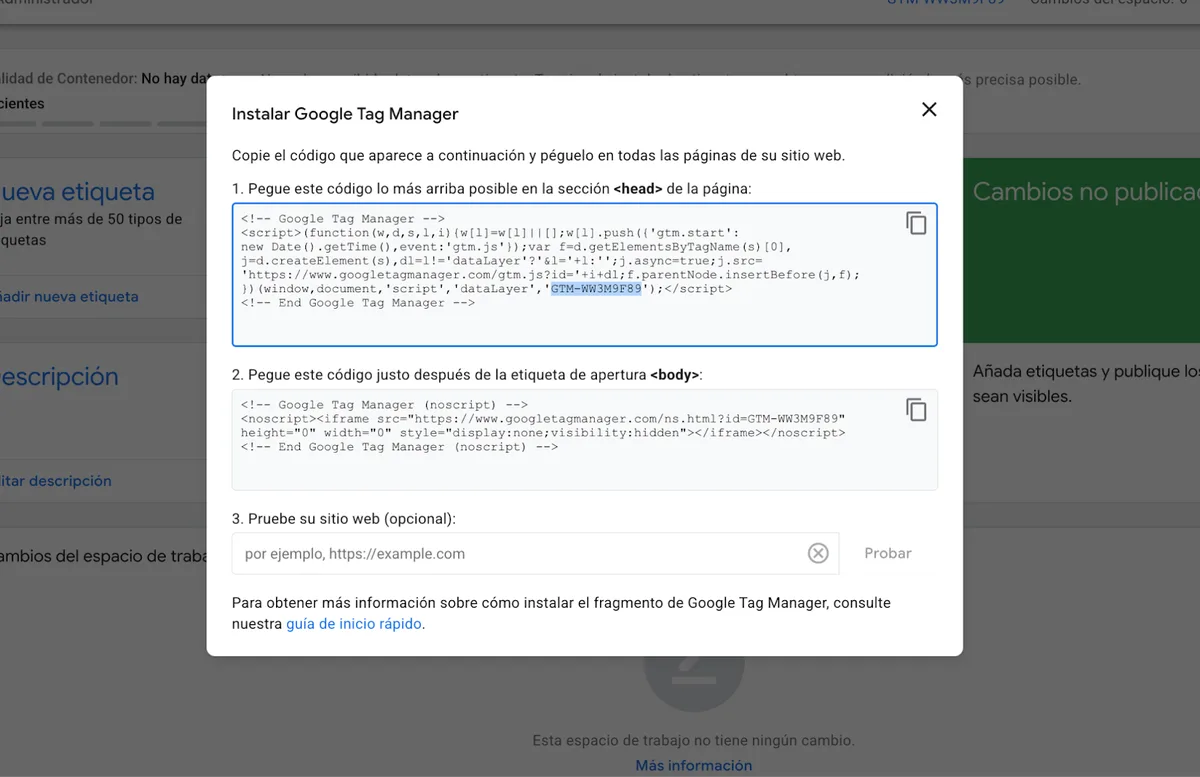
Once the container is created, you'll see two code blocks (one for <head> and one for <body>). You don't need to copy all the code. You only need your container ID, which looks like this:
GTM-XXXXXXX
Step 2: Integrate GTM into your store
2.1 Log in to your store's admin panel
Sign in as an administrator to your ventasxmayor.com store.
2.2 Go to the Google Tag Manager menu
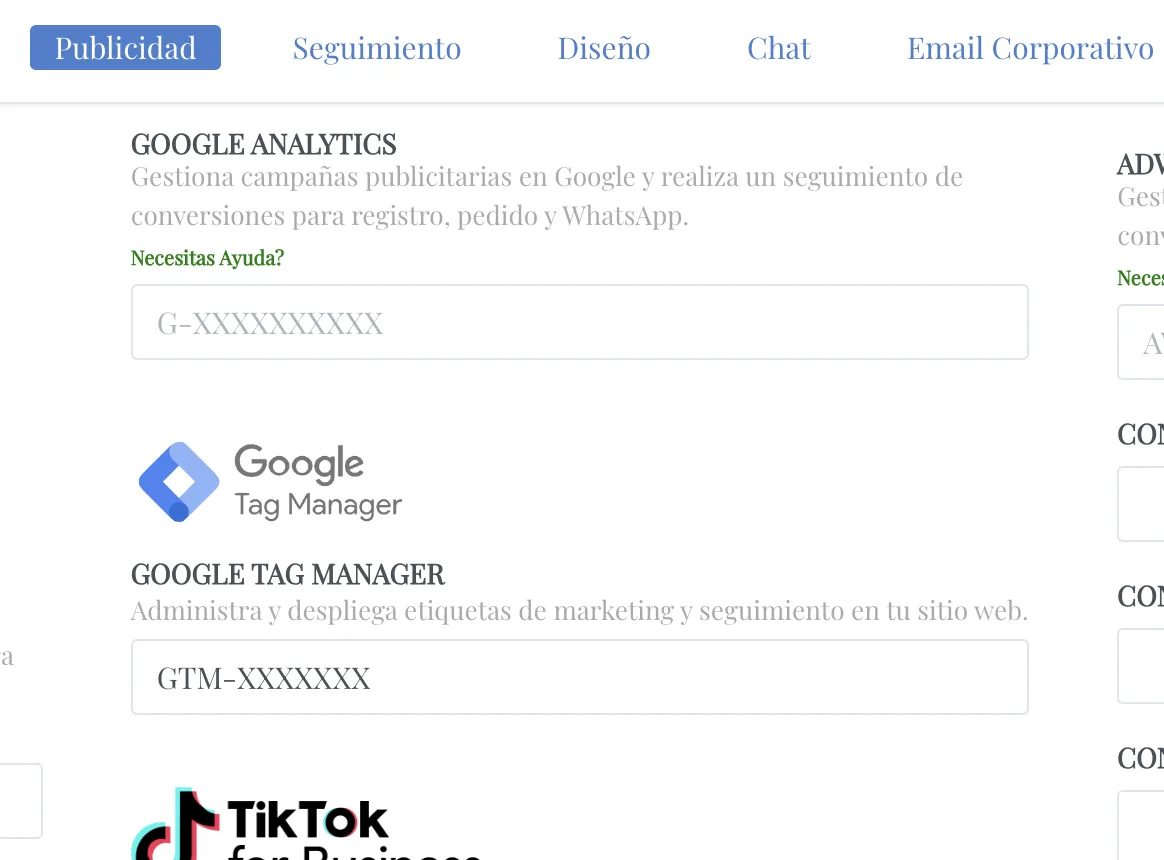
Navigate to: Advertising → Google Tag Manager
2.3 Paste your GTM ID
In the required field, enter your GTM container ID:
GTM-XXXXXXX
2.4 Save changes
Click Save. The integration is automatically activated on all pages of your store. You don't need to install anything else.
What can you do with GTM once integrated?
Once GTM is connected to your store, you can add any of these tools without touching the code:
- Google Analytics 4: Analyze traffic, behavior and conversions in your wholesale store.
- Google Ads: Set up conversion tracking and remarketing for your search and display campaigns.
- Meta Pixel (Facebook/Instagram): Measure the performance of your social media ads and create custom audiences.
- TikTok Pixel: Track conversions and optimize your TikTok campaigns.
- Hotjar / Microsoft Clarity: View heatmaps and session recordings to understand how your customers navigate.
- Custom events: Create events for specific actions like button clicks, product views, add to cart and more.
How to verify that GTM is working?
- Install the Chrome extension Tag Assistant Companion.
- In Google Tag Manager, click "Preview" and enter your store URL.
- Verify that the GTM container shows as active and that tags fire correctly.