
What is TikTok Pixel?
TikTok Pixel is a JavaScript code snippet installed on your online store. It allows TikTok Ads to record visitor actions on your site: from viewing products to completing registrations or placing orders. With this data, you can create smarter, more profitable campaigns.
Benefits for your wholesale business
- Conversion tracking: Know exactly how many registrations, orders, and WhatsApp clicks your TikTok ads generate.
- Custom audiences: Build audiences based on who visited your store, viewed products, or abandoned an order.
- Automatic optimization: TikTok uses Pixel data to show your ads to people most likely to convert.
- B2B remarketing: Re-engage wholesale buyers who already showed interest in your products.
- ROI measurement: Link every dollar invested in TikTok Ads with concrete results in your wholesale store.
Step 1: Create and configure your Pixel in TikTok Ads
- Log in to your TikTok Ads Manager account.
- In the top menu, click "Assets" and then "Events".
- Select the "Web Events" option.
- Click the "Manage" button.
- Select "Create Pixel" or "Add New Pixel".
- Give the Pixel a name (example: "Pixel Store VentasxMayor").
- Choose the manual installation mode: "Manually Install Pixel Code".
- A screen will open with the base installation code.
Important: you don't need to copy all the code you see. You only need a specific snippet to paste into your ventasxmayor.com admin panel.
Step 2: Copy the Pixel code snippet
Within the code that TikTok shows you, look for the snippet that contains the Pixel initialization. In the following example we show you what it looks like:
<script>
!function (w, d, t) {
w.TiktokAnalyticsObject=t;
var ttq=w[t]=w[t]||[];
ttq.methods=["page","track","identify","instances","debug","on","off","once","ready","alias","group","enableCookie","disableCookie"];
ttq.setAndDefer=function(t,e){
t[e]=function(){
t.push([e].concat(Array.prototype.slice.call(arguments,0)))
}
};
for(var i=0;i<ttq.methods.length;i++)
ttq.setAndDefer(ttq,ttq.methods[i]);
ttq.instance=function(t){
for(var e=ttq._i[t]||[],n=0;n<ttq.methods.length;n++)
ttq.setAndDefer(e,ttq.methods[n]);
return e
};
ttq.load=function(e,n){
var i="https://analytics.tiktok.com/i18n/pixel/events.js";
ttq._i=ttq._i||{},ttq._i[e]=[],ttq._i[e]._u=i,
ttq._t=ttq._t||{},ttq._t[e]=+new Date,
ttq._o=ttq._o||{},ttq._o[e]=n||{},
n=document.createElement("script");
n.type="text/javascript",n.async=!0,
n.src=i+"?sdkid="+e+"&lib="+t;
e=document.getElementsByTagName("script")[0];
e.parentNode.insertBefore(n,e)
};
ttq.load('CVUG3CBC67UA72LFDMPA');  // Your Pixel ID goes here
ttq.page();
}(window, document, 'ttq');
</script>Step 3: Paste the code in your ventasxmayor.com admin panel
- Go to your store at ventasxmayor.com.
- Access the Admin Panel.
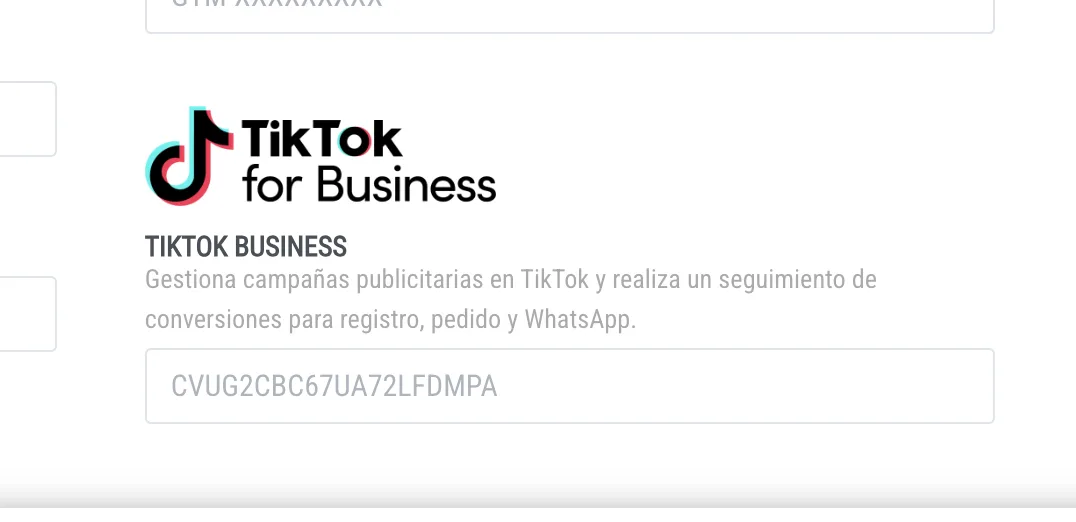
- Navigate to the "TikTok Business" section within the integrations area (Marketing / Tracking).
- Paste the Pixel code snippet you copied into the available field.
- Save the changes.
Verification and testing
After installing the Pixel, verify that it's working correctly:
- Return to TikTok Ads Manager.
- In the "Web Events" section, select your Pixel.
- You should see the Pixel status as "Active" once it receives visits to your site.
- To verify in real time, install the TikTok Pixel Helper Chrome extension and visit your store.
Events tracked automatically
Once installed, the TikTok Pixel on your ventasxmayor.com store automatically tracks the following key events for B2B campaigns:
- New customer registration: every time a wholesale buyer registers in your store.
- Order submissions: when a customer completes and submits an order.
- WhatsApp clicks: every contact interaction via WhatsApp from your store.
These events allow you to create campaigns optimized for each stage of the wholesale sales funnel.


